Homepage

Mostrando las entradas con la etiqueta esp8266. Mostrar todas las entradas

sábado, 12 de noviembre de 2016

Tutorial ESP8266 Control Servo Node-RED MQTT (Mosquitto) IoT #2


This time the integration of ESP8266 and the Node-RED platform has been made integrating an actuator in this case a servo controlled by PWM with rotation from 0 to 180 degrees.
From an HMI or SCADA Web creator on Node-Red-Dashboard using as base the MQTT Protocol and pubsubclient library converting the ESP8266 into MQTT Client.


Note: To successfully complete this tutorial you must perform the following tutorials.
Previous tutorials Recommended
icstation.com
Tutorial 1 : Install Lubuntu (Ubuntu)
Tutorial 2 : Installation node red platform
Tutorial 3: Installation Node Red Dashboard
Tutorial 4: Installation Modbus TCP IP in Node Red
Tutorial 5: Installation of Mosquitto Broker MQTT in Lubuntu
Tutorial 6: Program ESP8266 con Arduino IDE
Tutorial 7: ESP8266 and Node-RED MQTT GPIO  # 1


Arduino IDE
The ESP8266 module has been configured as an MQTT client, as subscriber of the "servo" topic, the ESP8266 will receive a value from 0 to 100% and will convert it from 0 to 180 degrees for servo control via PWM by GPIO 02.


Mosquitto MQTT Broker
Previously it has been installed in a computer with lubuntu (Ubuntu) Linux, the server Broker MQTT which performs the management of messages in the network, Mosquitto has been used in this case.

Node-Red
A sequence of nodes has been created to send data from the Dashboard.


                                                          Node-RED-Dashboard
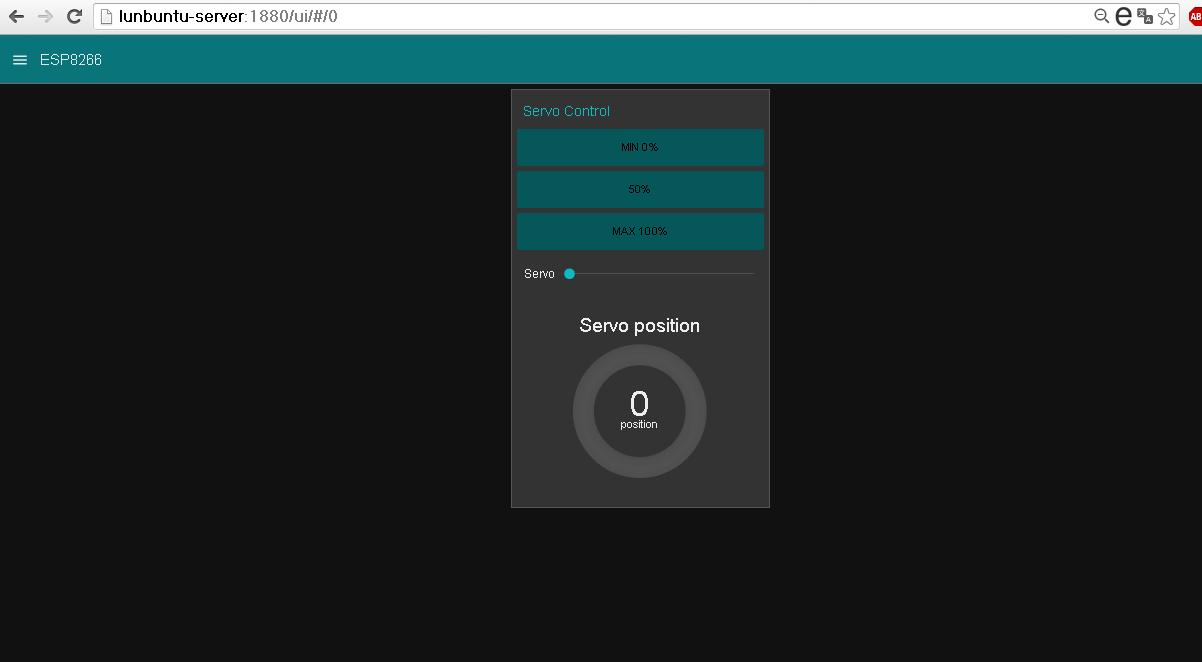
                                                            View Tablet


                            Video Tutorial ESP8266 Control Servo  MQTT Node-Red  IoT #4 
  

Materials 
1 ESP8266 01 
1 Regulator LDV33CV  5 a 3.3V
1 Chip FTDI Serial
1 Servo  Mystery control PWM

Connections

Where to buy?
icstation.com 
ESP8266 01 (ESP 01)

Downloads:
Github  Arduino IDE code ESP8266 MQTT
Github pubsubclient  Library 
Node Red  import code example

References
icstation.com
Tutorial 1 : Install Lubuntu (Ubuntu)
Tutorial 2 : Installation node red platform
Tutorial 3: Installation Node Red Dashboard
Tutorial 4: Installation Modbus TCP IP in Node Red
Tutorial 5: Installation of Mosquitto Broker MQTT in Lubuntu
Tutorial 6: Program ESP8266 con Arduino IDE
Tutorial 7: ESP8266 and Node-RED MQTT GPIO  # 1

node-red-dashboard
Nodered.org
github.com/node-red
Nodejs.org

More Information:

Youtube Channel:

miércoles, 9 de noviembre de 2016

Tutorial ESP8266 and Node-RED MQTT GPIO (Mosquitto) # 1

To integrate the module ESP8266 with node-red IoT platform has been used MQTT protocol, there are client libraries for esp8266 as MQTT in this case I decided to use the library pubsubclient.

This example will receive Node Red that receives data from the ESP8266 and allow control a LED connected to GPIO 02 from a dashboard created in Node Red Dashboard .


Arduino IDE add the pubsubclient library using the search engine libraries or manually by downloading the library and storing it in their respective folder for libraries.

Note: To successfully complete this tutorial you must perform the following tutorials.
Previous tutorials Recommended
icstation.com
Tutorial 1 : Install Lubuntu (Ubuntu)
Tutorial 2 : Installation node red platform
Tutorial 3: Installation Node Red Dashboard
Tutorial 4: Installation Modbus TCP IP in Node Red
Tutorial 5: Installation of Mosquitto Broker MQTT in Lubuntu
Tutorial 6: Program ESP8266 con Arduino IDE


Arduino IDE code
Arduino IDE code performs several steps but definire major, Broker connection with MQTT, function post (send messages) even specific topic and subscribe function (receive messages) even specific topic.
Note: At the bottom of the post code Full IDE arduino

1 .Parameters Network 
Set parameters network  PASSWORD  and SSID is required to have previously installed a MQTT Broker server which performs the function server broker, in this case I use Mosquitto MQTT.

const char* ssid = "##############";
const char* password = "###############";
const char* mqtt_server = "192.168.0.19";

2. Function publish ("topic" message)
 client.publish("event", "hello world");

3. subscribe Function ("topic")
the subscribe function makes a call to the callback function for data reception
  client.subscribe("event");

4. callback function
This function enter 3 personal parameters of the library pubsubclient.h topic, payload (load) and size, performs printing  of the topic and the message, to turn on the LED diode sweeps payload in a specific position to determine the state 1 or 0.

void callback(char* topic, byte* payload, unsigned int length) {
  Serial.print("Message arrived [");
  Serial.print(topic);
  Serial.print("] ");
  for (int i = 0; i < length; i++) {
    Serial.print((char)payload[i]);
  }
  Serial.println();

  // Switch on the LED if an 1 was received as first character
  if ((char)payload[0] == '0') {
     Serial.println("LOW");
    digitalWrite(2, LOW);   // Turn the LED on (Note that LOW is the voltage level
    // but actually the LED is on; this is because
    // it is acive low on the ESP-01)
  } 

 if ((char)payload[0] == '1') {
    Serial.println("HIGH");
    digitalWrite(2, HIGH);  // Turn the LED off by making the voltage HIGH
  }

}

Node Red
1 Node client receiving messages MQTT (subscribe) from ESP8266 through the topic "event" node debugging and debug.
2 Building 2 button "On" "Off" for sending node values MQTT (publish) to ESP8266 topic "event"
3 Node text text output to display status LED diode.
Note: At the bottom of the post code on Github Import Nodes


Design Node Red Dashboard 
Organization Tabbed Widgets and Groups


Visualization Node red Dashboard 


Conections ESP8266


Where to buy?
icstation.com 
ESP8266 01 (ESP 01)

Downloads:
Github  Arduino IDE code ESP8266 MQTT
Github pubsubclient  Library 
Node Red  import code example

References
icstation.com
Tutorial 1 : Install Lubuntu (Ubuntu)
Tutorial 2 : Installation node red platform
Tutorial 3: Installation Node Red Dashboard
Tutorial 4: Installation Modbus TCP IP in Node Red
Tutorial 5: Installation of Mosquitto Broker MQTT in Lubuntu
Tutorial 6: Program ESP8266 con Arduino IDE


node-red-dashboard
Nodered.org
github.com/node-red
Nodejs.org

More Information:

Youtube Channel:


martes, 20 de septiembre de 2016

Update ESP8266 Industrial Modbus TCP IP V2.0


There have been numerous applications in the ESP8266, I have taken as a goal to integrate this module into one of the industrial protocols most commonly used Modbus TCP IP, it would be good to have a node or sensor that sends data or a driver, OPC, PAC, PLC, HMI or SCADA.

A long time ago I found a group of people in forums.adafruit already had an advance and example have been implemented and improvements suggested by ibbba for the contribution.
The programming code for ESP8266 in this case was implemented in Arduino IDE versions 1.6.4 above. These 2 tutorials indicate connection and basic programming ESP8266 01 and 03 modules.

TUTORIAL

TUTORIAL
Previous tests library ModbusTCPSlave
ESP8266 - 01 Modbus Slave TCP IP (Ethernet) for Industrial Applications

CONCLUSIONS
In previous tests with the library Original ModbusTCPSlave, it had two drawbacks of application:
Code Execution
properly functioning communication modbus tcp, but do not run the code in the routine void loop, as a temporary solution the library for ESP8266 amending stop the connection and reconnect again, the problem with this method is time reconnection can make the teacher while accepting the data indicate error in data reception.
Serial port
Originally ESP8266 the serial port was used as a debug port in hexadecimal, I have made changes to the library so that Serial can be used freely.

                           VIDEO Update ESP8266  Industrial Modbus TCP IP   V2.0
IMPROVEMENTS
With the new modifications it has been omitted disconnection allowing a constant flow of communication if stop the connection between the ESP8266 and modbus tcp master mandatory.
Ticker
He has implemented Ticker library created and documented by igrr, it is an object to call a given function with a certain period. Each Ticker calls a function. You can have as many as you like tickers, the only memory limitation.

Important note: When creating tickers consider not create any delay would affect both modbus communication protocol, such as the execution of that function.


TESTING
the connection between the ESP8266 and a simulator configured as master Modbus tcp was made.
-initially The Ticker Parada is created.

CODE DESCRIPTION
call the function value is created and defined 2 Holding Registers:
Mb.MBHoldingRegister[0] =  Holding Registers 1
Mb.MBHoldingRegister[1] =  Holding Registers 2

Mb.MBHoldingRegister[0]  send a random(0,51) value to the Modbus Master and validate the upgrade value.

Mb.MBHoldingRegister[1]  is used for reading a value sent from the Modbus Master and from the serial terminal validate the update.

modbus routine Mb.Run();  is executed; and execute the Ticker Parada.attach_ms(25,valor); every 25ms doing the value created in the function.

Taking this example as a basis, they could perform management functions for I / O similar and digital, load and others, taking only into account not implement any delay.
POSSIBLE INDUSTRIAL APPLICATIONS


                                                                 TUTORIAL
Industrial software integration with OPTO 22

Downloads Github
Code  ESP8266_Industrial_ModbusTCP_V2

References
Arduino Mega 2560 Oled Display I2C Master Modbus RTU Scada Industrial Connection
Arduino + ESP8266 + Software Opto22 example Scada Industrial

More Info:

Youtube Channel
PDAControl


jueves, 11 de agosto de 2016

Blink ESP8266 03 ESP 03 in Arduino IDE


Testing the ESP8266 03 have noticed differences with ESP version 01.
By default brings AT commands, using the example blink and modifying 02 to activate the GPIO output.


Connection to Program ESP
Should the GPIO 0 to GND to place the bootloader mode module, its programming is equal to ESP 01 only this one does not have RST and should have the GPIO 15 to GND


Connection GPIO 02

Materials
ESP8266 03 (ESP03) to buy Icstation

Coupon Icstation

Code:PDAICS
Discount Amount: 10%
Max Use: 1
No Min Order
Started Date:1st August,2016
Ended Date:1st October,2016


Video Test


Reference:

More Info:

Youtube Channel
PDAControl


viernes, 29 de julio de 2016

New ESP8266 03 ( ESP 03 )


ESP8266 03
I have done extensive testing with ESP8266 01 (ESP 01), I think it has endless applications, but I decided to test another module of the same family, in this case ESP8266 03 (ESP03), say that your great serious advantage has 7 GPIO (I / O).


Characteristics

1. Support 802.11 B/G/N
2. Communication range up to 100 yards depending on environment.
3. Standard 3.3VDC operation with 5V compatible I/O.
4. Standard 3 wire (TXD/RXD/GND) serial communication (idle high) at 115200/8/N/1.
5. Standard 0.1" (2.54mm) half through hole.
6. Upgradeable firmware.
7. Three mode of operations: Client/Access Point/Both Client and Access Point.
8. Support all major security schemes: OPEN/WEP/WPA_PSK/WPA2_PSK/WPA_WPA2_PSK.
9. Support both TCP and UDP communication.
10. Working as TCP/UPD server supports up to five (5) connections.
11. Working as station can connect up to 5 TCP/UPD servers.
12. Simple AT commands for all operations.
13. Dimensions in mm 17.3 × 12.1.
14. 7 Gpio (I/O)


Materials
ESP8266 03 (ESP03)

Reference:

More Info:

Youtube Channel
PDAControl


jueves, 21 de julio de 2016

Send Email with ESP8266 (Google Docs) Google Script App +Google Spreadsheets + Gmail


Reusing the connection is established with google  cript app google and  google spreadsheets, they have conducted tests of electronic mail sent availing the services of google.


In this case the ESP8266 sends a series of parameters to google Script Email Address, Subject, Message via the url,
  operation is both simple and I think that is simply an option to send any eventuality from your gmail account without much complication.
Simply a secure connection with Google script is done and sends a Post with the parameters required

  There is another way to send e-mails and tutorials future roadmap send emails via SMTP native from ESP8266.
SMTP from Wikipedia.

Important note :
To understand in detail the mode of operation of the connection between esp8266 and Google App Script first see the following posts, since the Library uses HTTPSRedirect created by Sujay Phadke (electronicsguy) thanks for their contribution to the community ESP,

1. ESP8266 program with Arduino IDE in 5 minutes

2. ESP8266 direct connection to Google Spreadsheets (Google Docs)

Informative note :
It should be noted that these services must have a gmail daily limit, both email and Script execution, this note is purely informative.

Informative Dashboard for Google accounts.

https://www.google.com/settings/dashboard?hl=es-419
http://www.google.com/appsstatus#hl=es&v=status

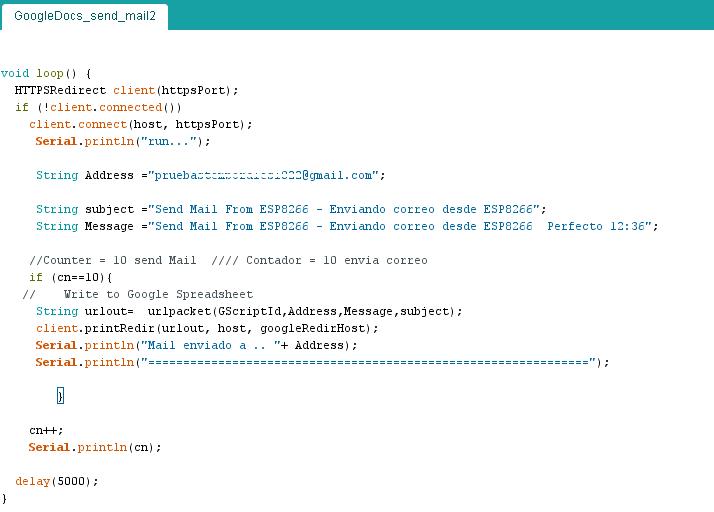
Arduino IDE Code
download code at the end of post

Code Google Script App
Make reading parameters from ESP8266 and makes sending email.
download code at the end of post


Google Spreadsheets 
Template Verification, Google script reads cells A2, B2, C2 and D2 There must come from ESP8266 parameters.


Terminal Serial  ESP8266
Initially, the module makes connection to the network, performs verification certificate, Send POST data.
It has created a counter to prevent uncontrolled mails sent when the counter is equal to 10 can make the shipment.


Mail from Receiver
Currently I have only tested emails to gmail, but should work to any mail server.


Video Complete Test


More Test Similar

Test Prueba 01-  ESP8266 + DS18B20 Onewire + Google Speadsheets (Google Docs)


Connection PLC fpx Panasonic and Google spreadsheets (Google docs) 


Control outputs  ESP8266  with Google spreadsheets (Google docs) Direct


Downloads

Related Projects

More Info:

Youtube Channel
PDAControl


martes, 19 de julio de 2016

ESP8266 01 + Clock Tiny RTC ds1307 + Memory Eeprom 24c32


This Arduino Tiny RTC I2C DS1307 module has a real time clock for I2C protocol and an EEPROM memory for storage  IC I2C EEPROM 24C32 32K. 


Many thought for a wireless module needs a real-time clock, if you can make requests to a local server via UDP ip, but there are certain applications in which in which there are not always Internet connections and time stamp is required .

Tests
The connection to the module ESP8266 01 via 2-wire I2C protocol by GPIO0 and GPIO2 is done, the strategy initially updated MRTC time and then proceeds to make the impression on the serial terminal

Test Module 


Terminal Serial


Circuit


Download 
Code Arduino IDE

More Info:

Youtube Channel
PDAControl


jueves, 7 de julio de 2016

Turn led ESP8266 with Thinger.io


This time a test is carried out with the Thinger.io platform, using a 01 ESP8266 be conducted remotely control a diode led directly from the web platform.
As shown by a LED diode will control but the application can be with relay actuators and others.

Requirements:

Turn led ESP8266 with Thinger.io

Api control device

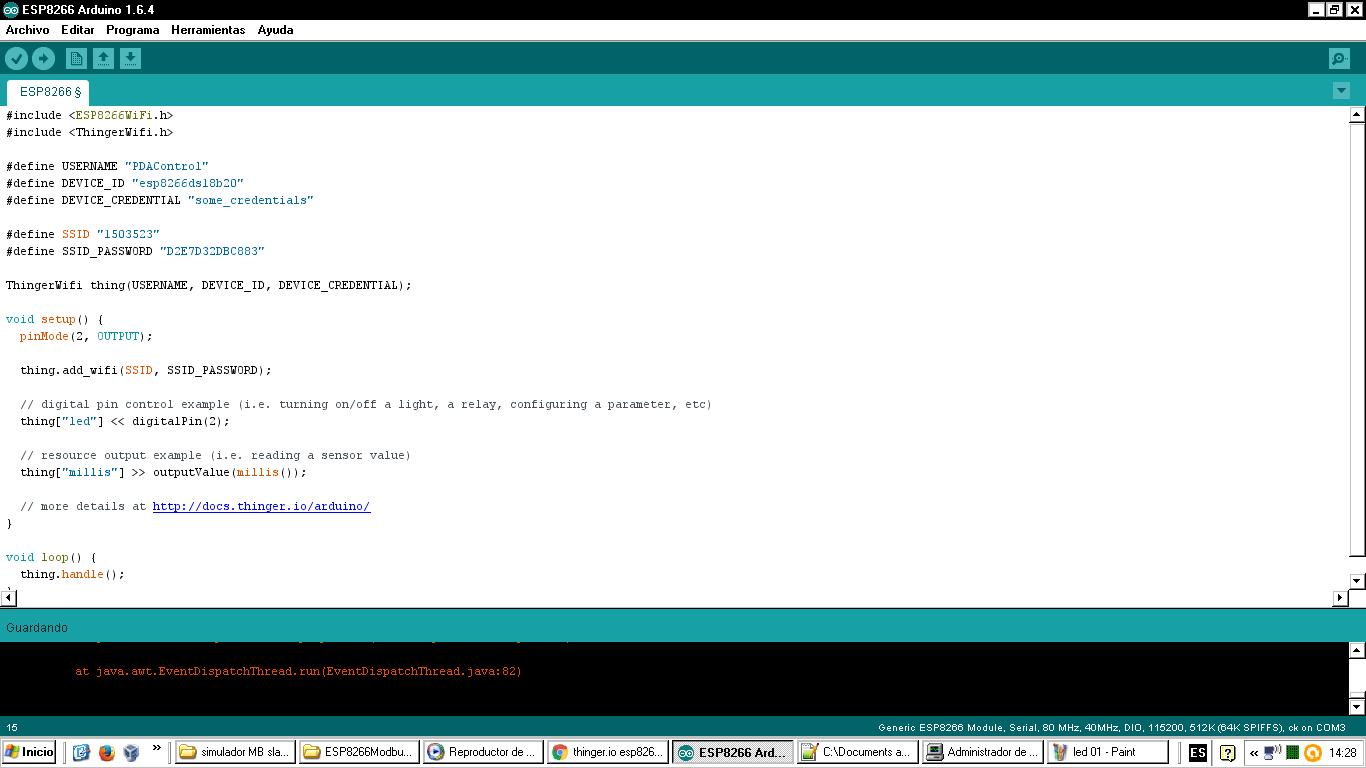
 Arduino IDE Code


Test


Materials

1  - 1 ESP8266 - 01
2  - 2 Converter FTDI  Serial -Usb ttl
3  - 3 Regulator 5 a 3.3v
4  - 1 diode led
5  - 1 resistor de 220 Ohm

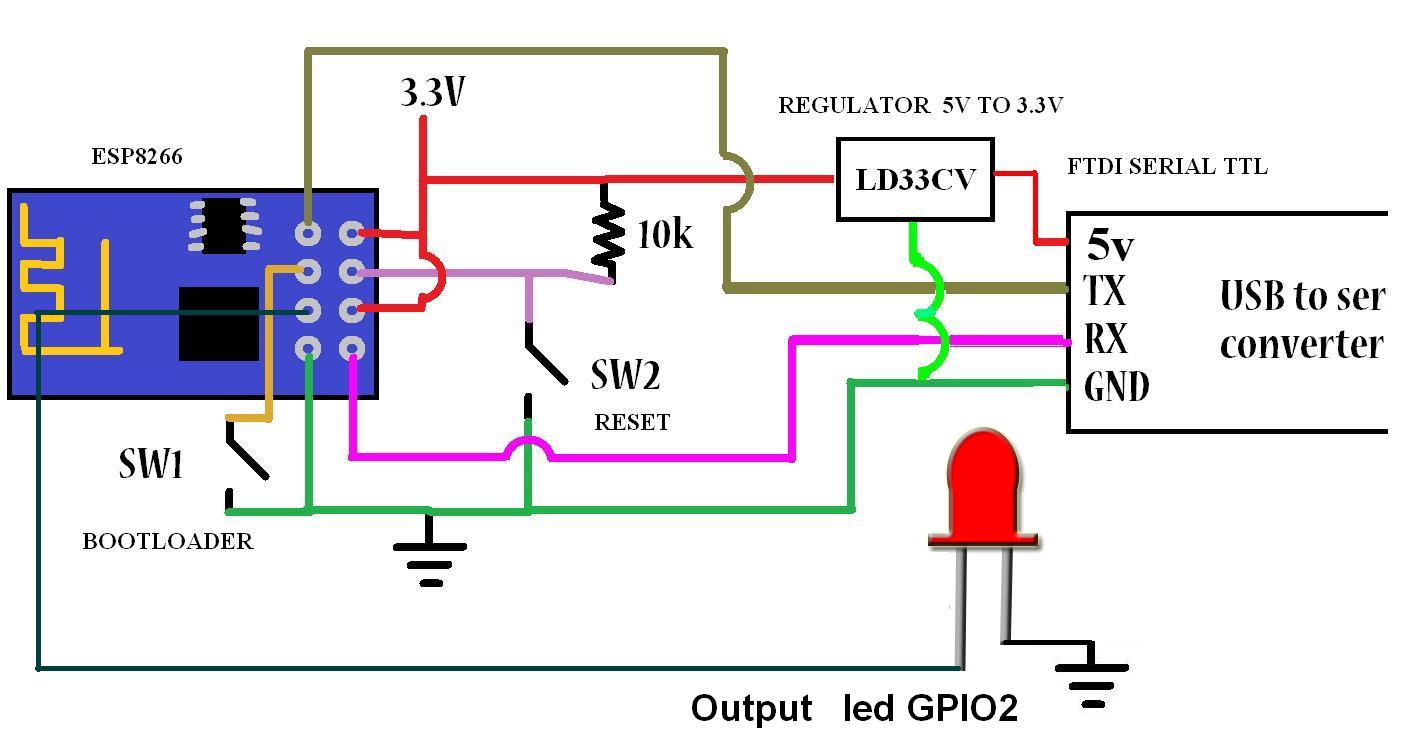
Connections


Downloads 


More Info:

Youtube Channel
PDAControl

miércoles, 6 de julio de 2016

Introduction Plataform IoT Thinger.io


This time I bring this IoT platform called Thinger.io, in this tutorial as NOTED create an account to register our devices either Arduino, Raspberry Pi or other data collection platform in my case tests effected, with the ESP8266 01.

This platform allows monitoring and control of variables without any complications.
page Oficcial : https://thinger.io/


You want to try thinger.io? The following video will show you step by step


Preview


Report data transmission


Number of Devices
Register for free allows 3 devices with a limit of sending requests monthly 100mb


Geolocation
It has geolocation of connected devices.


Testing - Video tutorial


More Info:

Youtube Channel
PDAControl